

The foldable iPhone Duo has become a new type of device in Apple’s line-up and, along with its form factor, has gained a number of unconventional capabilities. Some of them are not obvious at first glance, but can significantly simplify everyday use of the smartphone.
The publication Mashable has released an overview of hidden features and tips on how to use the iPhone Duo.
One of the most convenient innovations concerns opening Control Center. On the iPhone Duo, a combined icon has appeared in the top right-hand corner of the screen, bringing together the Wi‑Fi, cellular signal and battery charge indicators. Simply tap this icon and the control panel appears instantly, while the icon itself expands into separate indicators with more detailed information. This helps avoid inaccurate swipes which, on previous models, often led to accidentally opening Notification Center instead of Control Center.
Another feature is related to automation via the Shortcuts app. The user can link the execution of a specific shortcut to the moment the iPhone Duo is opened or closed. In this way, when unfolding or folding the smartphone, you can automatically launch an app, change the wallpaper or play a sound. The reviewer notes that they have not yet found a truly practical scenario for this, but the potential for automation here is considerable.
Because of the unusual form factor, iPhone Duo owners may experience so-called ‘orientation fatigue’ — when constant flipping of the device makes it hard to remember the location of the power, camera and volume buttons. To address this, Apple has added a setting for dynamically changing the functions of the volume keys. In the Settings > Sounds & Haptics menu there is an item called Fixed Position Volume Controls. It is enabled by default, and the volume up and volume down buttons remain fixed regardless of how you hold the phone. If you disable this option, the system will automatically assign the button located on the right or at the top the role of volume up, making it easier to orient yourself.
The iPhone Duo also supports enhanced multitasking capabilities. In landscape orientation, you can place two apps side by side by dragging them to different parts of the screen. If you then rotate the device to portrait, this split disappears. At the same time, another option becomes available: portrait mode with video in a Picture in Picture (PiP) window. To do this, you need to start a video in an app such as YouTube, minimise it so that the clip remains in a floating window, then open a second app, switch the Duo to portrait orientation and drag the small video window to the top of the screen. As a result, the video is displayed at the top and the other app below, creating a convenient split-screen layout which, thanks to the wide display, remains perfectly usable.
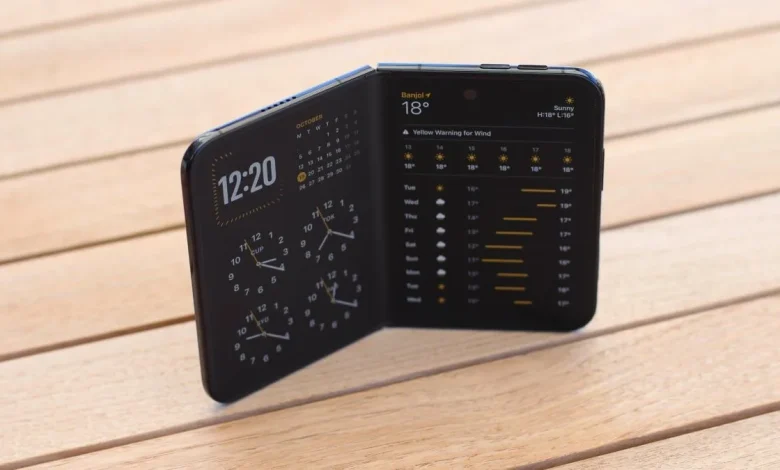
The implementation of StandBy deserves separate attention. On the iPhone Duo there are effectively two different StandBy modes. The first is in the so-called ‘tent’ mode: the device is folded at an angle and placed on a flat surface, after which, in sleep mode, a special StandBy screen with several layout options appears. The second option works when the smartphone is fully unfolded and set horizontally, for example using a case with a stand. In this case, StandBy occupies a larger area of the screen, does not offer multiple swipeable screens, but instead provides broader options for configuring widgets — you can display Clock, Calendar, Photos, TV+, Stocks, Notes and other elements.
The reviewer notes that they use both modes: at night — the tent-style StandBy for a quick glance at the time, and while working — the expanded version with a calendar and world clock.
In this way, the iPhone Duo offers a range of features that are not immediately noticeable but can make using the device more convenient and flexible, especially for those who actively experiment with new use cases for foldable smartphones.