

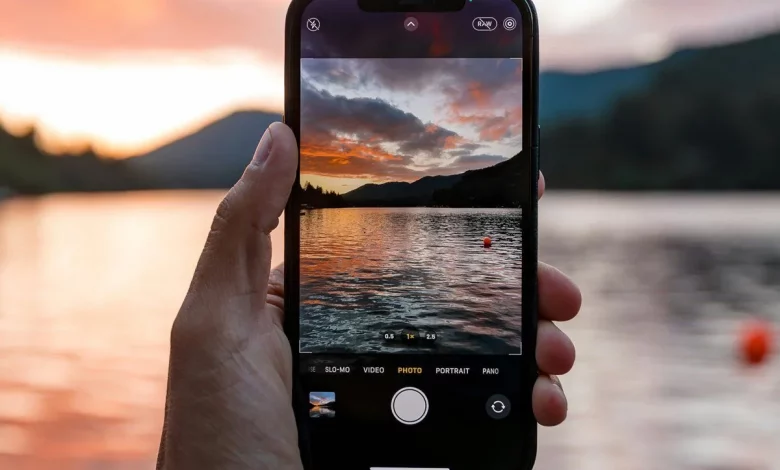
Modern smartphones are getting increasingly powerful cameras and image processing, so you can take high-quality shots without professional knowledge. At the same time, the default camera apps on Google Pixel, Samsung Galaxy and Apple iPhone include tools that can noticeably improve your photos in just a few seconds.
On Google Pixel smartphones, in the Pixel Camera app, the shooting modes are located under the shutter button and can be swiped through. Night Sight mode combines several frames for better photos in the dark and is even suitable for astrophotography. Portrait mode identifies the main subject and blurs the background. Tapping the button with sliders at the bottom right opens the settings for Shadows, Exposure, White Balance, Focus, ISO and Shutter speed, with their effect immediately visible in the preview window. In the settings menu (gear icon) you can enable Top Shot, where the phone records a short video and uses AI to suggest the best frame, as well as Motion photo, which combines a photo with a few seconds of video. You can also enable a framing grid, Framing Hints, and Ultra HDR mode for more vivid colours and better detail in the shadows.
On Samsung Galaxy smartphones, the default camera also has several modes at the bottom of the screen. Next to Photo is Portrait, where you can adjust the degree of background blur. Additional modes are hidden under More, including Panorama, Slow Motion and Food, which automatically adjusts the colours of dishes. In Pro mode, the user gets manual control over white balance, tint, shutter speed, ISO, exposure and AF autofocus, and can also switch to manual focusing. This section also offers an exposure monitor and light meter for more precise adjustment of the scene lighting. Through the menu with four dots and the gear icon you can access the general camera settings: filters, Shot suggestions hints and the Composition guide with a grid for easier framing.
On iPhone, in the default Camera app you can swipe between shooting modes, including Portrait with automatic subject detection and background blur. Above the shutter button a scale appears for selecting lighting and the blur effect. In Photo mode, tapping the icon with six dots to the right of the shutter button opens advanced settings, including Exposure and Depth for controlling brightness and depth of field. The same menu offers Styles (Warm, Cool, Vibrant and so on), which change the processing of different parts of the frame while shooting, and Filters (Dramatic, Noir, Vivid and others), which are applied to the entire image and can be changed later. Tapping any point on the screen locks focus at the selected spot, and a long press allows you to keep it for a series of shots. In the iOS system settings under Camera you can enable Grid and Level for more accurate alignment of the frame and set default shooting parameters.
The authors also recommend removing location data from photos before posting them online if you do not want to reveal the exact geolocation of your shots.