

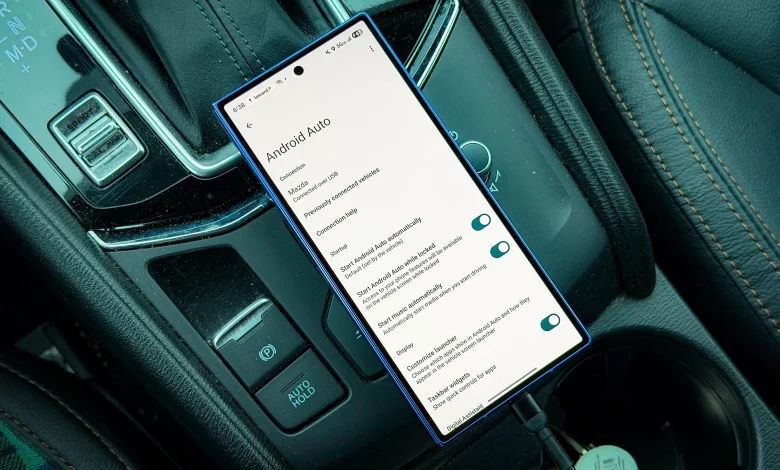
When you use Android Auto, your smartphone is navigating, playing music, charging and transferring data all at the same time. This level of load can cause the device to heat up quickly and even display high temperature warnings.
Experts suggest a few simple steps that can help reduce your phone’s temperature in the car and avoid glitches in Android Auto.
1. Use a wired connection. Wireless Android Auto keeps both Wi‑Fi and Bluetooth running constantly, which puts extra strain on the smartphone. Connecting via cable reduces this load and can lower the device’s temperature.
2. Take the case off. On a long journey, when navigation and music are running at the same time, a thick or rugged case traps heat. If you’re expecting a long drive, it’s worth temporarily removing a bulky case so the phone can “breathe” more freely.
3. Turn off your smartphone screen. The display consumes a lot of power and generates additional heat. Once the image is already mirrored on the car’s screen, it’s sensible to switch off the phone’s display or at least significantly reduce the brightness.
4. Direct the air conditioning towards the phone. If the car’s air conditioning is on, you can point one of the vents at the smartphone. Extra airflow, similar to fans in a computer, helps dissipate heat more quickly. Phone holders that attach directly to the air vents are particularly convenient for this.
5. Use quality cables. Cheap or worn cables can cause constant reconnecting, excessive current draw and charging issues, all of which also lead to heating. It’s recommended to choose a short (around 1 metre) high-quality cable that supports fast data transfer and charging.
6. Close unnecessary apps. On older smartphones it’s especially important not to keep lots of apps running in the background. While Android Auto is in use, it’s worth closing social networks, photo backup services, shopping and other apps that may be updating in the background. If possible, it’s a good idea to restart the phone before the trip.
7. Download maps for offline use. Navigation apps make intensive use of mobile data, which increases the load on the device. Pre-downloading maps for your route reduces the amount of data transferred and helps prevent overheating, especially in areas with poor coverage. When a connection is available, services such as traffic and incident information remain accessible.
8. Turn off fast charging. Fast charging mode generates more heat. Combined with navigation, music and data transfer, this can become an additional overheating factor. In your smartphone settings you can disable fast charging so the phone charges more slowly but with less heat. Frequent fast charging in a hot car interior also has a negative impact on the battery.
Following these tips will help keep your smartphone cooler on the road and make using Android Auto more stable and safer for your device.