

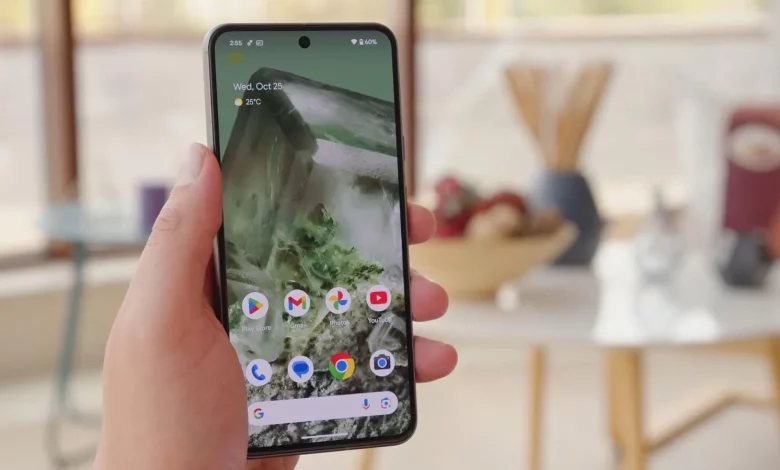
The default Android home screen is usually filled with pre-installed app shortcuts you barely use. To make your phone genuinely helpful in everyday tasks and less likely to tempt you into mindlessly scrolling feeds, it is worth tailoring the home screen to your own needs.
The first step is to remove unnecessary shortcuts and keep only the elements you actually use every day on the screen. Next, you can turn the home screen into a convenient working hub: add widgets, action shortcuts and folders, and minimise distracting apps.
Widgets let you perform specific actions or view information without opening apps. These might include quick Google search, tracking your water intake or checking your email. To add a widget, you usually need to long-press on an empty space on the screen, select the “Widgets” option, find the one you need, drag it onto the home screen and, if necessary, adjust its size and settings. If a particular app does not support widgets, you can look for an alternative or use third-party apps to create widgets.
On many Android phones, you can also pin shortcuts to specific actions within apps on the home screen. For example, you can open Chrome directly in Incognito mode or launch Gmail straight into the compose window. To do this, you need to open the shortcut menu: in the app drawer, long-press the app icon, choose the required action from the list and drag it to the home screen. The supported actions vary from app to app, and some apps do not offer such shortcuts at all.
If you visit the same websites every day, it is useful to place them on the home screen as separate icons. In most mobile browsers, you simply open the desired site, go to the menu and select the option to add a shortcut to the home screen (in Chrome and Brave this is “Install” / “create shortcut”; Firefox, Edge, Opera and Samsung Browser have similar options). Once the shortcut is saved, the site will open with a single tap.
To keep the home screen convenient, it is best to place only your most frequently used apps there — email, notes, calculator, messengers, documents and so on. It is better to limit the number of such apps and keep things tidy by spreading them across pages (separately for work, personal matters, communication, documents, tools) or grouping them into folders such as “Finance”, “Communication”, “Tools”. A folder is created by simply dragging one shortcut onto another and then renaming it.
An important step is to remove unnecessary triggers from the home screen. Social networks and games that encourage long sessions of “doomscrolling” are better off hidden in the app drawer or in a separate folder so they are not immediately to hand as soon as you unlock your phone. In addition, you can try minimalist Android launchers that show only a handful of essential apps on the home screen and simplify the interface as much as possible. Such launchers often remove superfluous icons and wallpapers, which helps cut down on screen time and encourages more mindful smartphone use.