

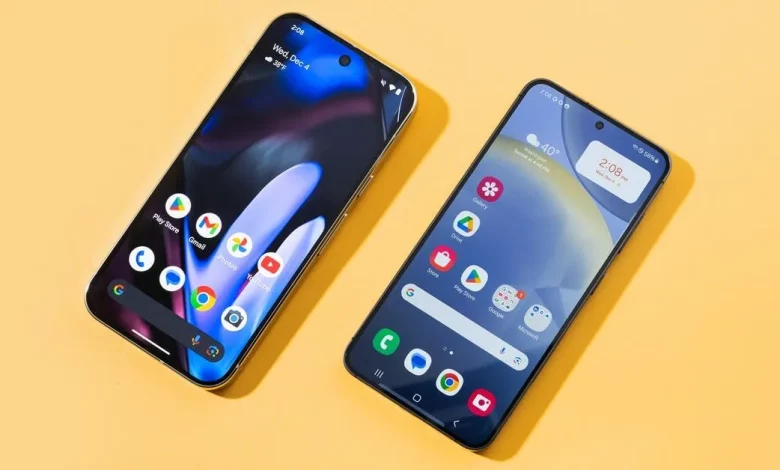
Android smartphones run on a shared operating system, but their capabilities vary depending on the manufacturer — Samsung, Google or other brands. As a result, some useful features go unnoticed. Below are 15 lesser-known options that will help you fine-tune your phone, speed it up and strengthen data protection.
1. Deep customisation of the interface. On Android you can change interface colours, icons and even create emoji-based wallpapers. On Samsung smartphones, press and hold an empty area on the screen and open “Wallpaper and Style” → “Color Palette”. On Pixel, colour palettes appear under the home screen preview. Additional themes and icon packs are available in Google Play or via the Samsung Themes menu.
Pixel devices have a separate Emoji Workshop feature: it lets you create vivid emoji wallpapers that, for example, turn into lightning when you start charging. You can access it via the “More Wallpapers” option in the “Wallpaper and Style” section.
2. Fixing typos using the space bar. Instead of trying to tap the exact spot for the cursor in a line of text, simply swipe left or right on the space bar. This lets you move quickly through the text and correct typos without lifting your fingers from the keyboard.
3. Comfortable one-handed typing. Because modern smartphones have large screens, typing with one hand can be awkward. The one-handed keyboard mode helps — it shrinks the keyboard into a smaller window that can be shifted to one side. On Pixel, turn it on via the menu with four squares in the top left corner of the keyboard by selecting One-handed. On Samsung, use the three-dots button in the top right corner of the keyboard.
4. Charging another phone from yours. Many Android devices support reverse wireless charging. On Samsung, enable it in “Settings” → “Battery” → “Wireless power sharing”. On most Pixel models (except Pixel Fold and the A series) go to “Settings” → “Battery” → “Battery Share”. Once it is on, place your phone face down and put another device that supports wireless charging on top — it will start charging from your battery. For quicker access, you can add a toggle to the quick settings panel.
5. Faster access to the quick settings panel. Normally, to open the quick settings panel (Wi‑Fi, torch, Do Not Disturb mode and so on), you need to swipe down twice from the top of the screen. You can do it in a single gesture: swipe down with two fingers at once. Then it is worth customising the panel itself. On Samsung, tap the pencil icon in the top right corner and then the “Edit” button in the Top or Full section. On Pixel, the pencil icon is in the bottom right corner. There you can add shortcuts for screen casting, QR code scanning, live captions, Wi‑Fi hotspot and other functions.
6. Sharing a Wi‑Fi password via QR code. Instead of spelling out a complex network password, on Samsung open “Settings” → “Connections” → “Wi‑Fi”, tap the cog next to the network you want and select “QR code”. On Pixel go to “Settings” → “Network & internet” → “Internet”, tap the network and then the “Share” button. Anyone who scans the QR code (even from an iPhone) will be connected to the Wi‑Fi straight away.
7. Split screen and extra actions from the app carousel. On Samsung, the button with three lines opens the list of running apps. If you tap the app icon at the top of its window, you can enable split-screen mode or open the app in a pop-up window. On Pixel, the app carousel opens with a swipe up from the bottom edge of the screen. From there you can also take a screenshot or copy text from the app window.
8. Quick tab switching in Chrome. If you have many tabs open in your browser, you can switch between them by swiping left or right on the address bar. A downward swipe on the address bar opens the full list of tabs: you can open them, drag them to rearrange the order or close them with a sideways swipe.
9. Quick actions via a long press on an icon. Many Android apps support contextual shortcuts. If you press and hold the Google Maps icon, you will see your favourite places for instant navigation. In Messages you can immediately start a new conversation or jump straight into one of your recent chats.
10. File sharing via Quick Share. The Quick Share feature lets you transfer files between Android devices, Chromebooks and some Windows PCs. On certain models you can also send files to Apple devices. Transfers use Bluetooth or a direct Wi‑Fi connection, even without internet access. To set it up, open “Settings”, search for Quick Share, make your device visible to others and choose who is allowed to send you files — only your contacts or anyone nearby (for a limited time).
11. Recognising objects and text with Google Lens. In the Google Photos app, each picture has a menu (three dots in the top right corner) with a Google Lens icon. After you tap it, the service analyses the image and shows information about objects, plants, animals or products. You can also copy or translate text from a photo. A long press on the “Home” button opens the Circle to Search feature, which works in a similar way.
Samsung’s native Gallery app has a similar tool called Bixby Vision — launch it via the “eye” icon in the top right corner of the screen.
12. Handing your phone to someone else safely. The app pinning feature allows you to “lock” the screen to a single app so that the person using your phone cannot exit it and browse other data. On most Android phones, go to “Settings”, find the “More Security and Privacy” section and enable “App pinning” at the bottom. On Samsung, open “Security and privacy” → “More security settings” → “Pin app”.
Once it is enabled, open the app carousel (a short swipe up or the three-lines button on Samsung), select the app you want, tap its icon and choose “Pin”. To unpin, you need to perform a special gesture (for example, holding the navigation buttons). The phone will then lock and require your PIN, password or biometrics.
13. A hidden space for private apps. Pixel phones have a Private Space feature — a separate protected area in the app drawer that is accessible only with a PIN code or biometrics. You can set it up in “Settings” → “Security & privacy” → “Private space”. Apps installed in this section are isolated from the rest of the system, so you can keep two different copies of the same app.
On Samsung smartphones, a similar role is played by Secure Folder. Enable it via “Settings” → “Security and privacy” → “More security settings” → “Secure Folder”.
14. Quick camera launch and shooting. To open the camera instantly, just press the power button twice — even if the screen is locked. You can take a photo by pressing the volume down button, and holding it down starts video recording. This is handy when you need to shoot one-handed in landscape orientation.
15. Screen recording without third-party apps. Most modern Android smartphones have a built-in screen recorder. To add it to the quick settings panel, pull down the notification shade, tap the pencil icon, find “Screen record” (on Samsung — “Screen Recorder”) and drag it onto the panel. After that, to start recording simply tap the corresponding button and choose whether to capture the entire screen or just a specific app, and whether to record sound.
These features are already available on most Android smartphones and do not require any additional apps. Using them can make your device more convenient, more secure and faster in everyday use.