

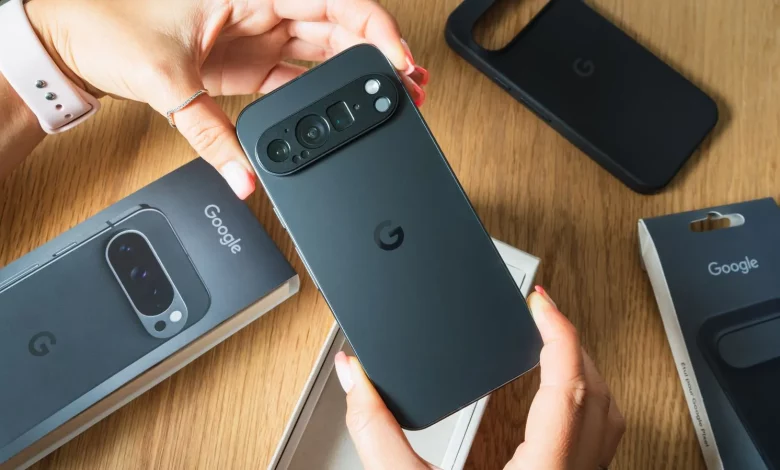
A new Google Pixel smartphone can seem complicated, especially if you have not used Android before. At the same time, a few basic settings will immediately help protect you from spam, prepare your phone for emergencies and make it more convenient for everyday use.
Before you start, make sure your device is running the latest version of Android. To do this, open “Settings”, go to “System” and select “Software update”. If an update is available, follow the on-screen instructions.
Transfer data from your old smartphone
If the Google Pixel is not your first phone, you will most likely need to transfer contacts, photos, videos and other data. To do this, prepare your old smartphone, the new Pixel, a suitable USB cable for connecting them and a SIM card (if you have one). Ideally, both devices should be charged and connected to a stable Wi‑Fi network.
During the initial Pixel setup, sign in to your Google account. If you are switching from an iPhone, place the Pixel next to your old phone or connect them with a cable. A menu will appear on the screen with a choice of data types to transfer — once you confirm, copying will begin. When switching from Android, the process is similar: simply sign in to your Google account on the new Pixel, choose what exactly to transfer, and the system will do the rest automatically. Before you start, it is worth creating a backup of the data on your old device.
Set up Emergency SOS
Pixel smartphones include tools for emergency situations, in particular the Emergency SOS feature. Once activated, it allows you to call emergency services by pressing the power button five times in a row.
To switch on Emergency SOS, open “Settings”, go to “Safety & emergency” and select “Emergency SOS”. Tap “Start setup” and follow the step-by-step instructions: you can change the emergency services number, enable assisted calling with the transmission of your geolocation, add contacts for alerts and choose what data will be sent to them. During setup, you should allow the Personal Safety app “While using” so that it can share your location.
The system will also suggest enabling emergency recording (audio or video) with the option of automatic sending after backup. At the end, you need to choose how Emergency SOS actions will be triggered — for example, by holding down a button or by automatic start after a countdown, with the option to play a loud alert. When you are finished, tap “Done”.
Enable Call Assist and protection from scam calls
Pixel smartphones have tools to combat spam, including Call Screen as part of Call Assist. Automatic call screening allows the device to “answer” calls from unknown numbers on its own and show you a text transcription of the conversation. If the system determines that the call is not spam, it will put it through to you.
To set up automatic screening, open the “Phone” app, tap the “More” icon (three vertical dots), go to “Settings” and find the “Spam and Call Screen” or “Call Screen” section. Then choose screening options for unknown or suspicious numbers.
For manual screening during an incoming call, you can tap “Screen call” so that Call Assist can find out the purpose of the call. After that, you can end the call, answer it or choose one of the pre-prepared response options. In the Call Screen settings, there is also a “Respond with AI replies” option, which allows the assistant to respond on your behalf.
Separately, you can activate the Scam Detection feature on Pixel. To do this, in the “Phone” app open “More” → “Settings” → “Scam Detection” and make sure the switch is turned on. The feature runs in the background, and the caller hears a special tone indicating that it is active.
Use the accessibility menu
In the Pixel accessibility section there are a number of useful tools, including the Accessibility Menu. It simplifies device control: it allows you to press buttons more easily, move between screens and interact with interface elements.
To enable the Accessibility Menu, open “Settings”, go to “Accessibility” and select “Accessibility Menu”. Activate the menu shortcut and confirm the permissions. After this, you can open the menu with a gesture (swiping up with two fingers, or three if TalkBack is enabled) or by tapping the floating accessibility icon on the screen.
In the menu itself, you can choose the actions you need and move between screens to find additional options. If you need to enlarge the buttons, go back to the Accessibility Menu settings, open “Settings” and switch on “Large buttons”.
Font size is adjusted separately: open “Settings”, find “Font size” and change it using the slider. Similarly, in the “Display size” section you can change the scale of interface elements.
Set up widgets on the Home screen
In addition to protection and safety, it is worth personalising your Pixel to suit your own needs. One of the most convenient ways to do this is by using widgets. They allow you to quickly view information from apps (weather, calendar, reminders), create photo galleries on the Home screen, and control individual settings or smart devices in your home.
To add a widget, touch and hold an empty area of the Home screen and select “Widgets”. Then choose the app whose widgets you are interested in, or tap it to see the full list of available options. Touch and hold the widget you want — a preview of the Home screen pages will appear. Drag the widget to the desired place and release it.
Many widgets can be resized: to do this, touch and hold the widget, release it, and then drag the dots along the outline to make it larger or smaller. When you are happy with the result, tap anywhere outside the widget.
These few steps will help new Google Pixel owners quickly prepare their smartphone for everyday use, make it safer and more convenient, and customise the interface to their own preferences.