

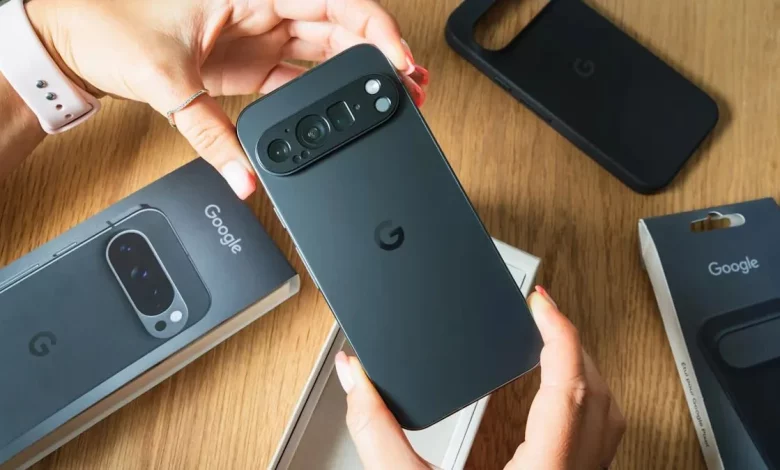
A new Google Pixel smartphone feels great in the hand, but the first steps with it can be confusing, especially if you have not used Android before. To start using it quickly and safely, it is worth immediately updating the system, transferring data from your old phone and configuring the key security and convenience features.
First of all, check whether the current version of Android is installed on your Pixel. To do this, open “Settings”, go to the “System” section and select “Software update”. If an update is available, follow the on-screen instructions to get the latest bug fixes and security updates.
Transferring data from your old smartphone will help you keep your contacts, photos, videos and some settings. You will need your old phone, the new Pixel, a suitable USB cable and a SIM card (if you use one). If you are switching from an iPhone, sign in to your Google account on the Pixel, hold the devices close together or connect them with a cable. A menu will appear on the screen where you can choose which types of data to transfer. The principle is similar when switching from another Android device: sign in to your Google account on the new Pixel, choose what to copy and wait for the process to complete. In any case, it is advisable to have a stable Wi‑Fi connection, charged devices and a recent backup of your old phone.
An important step is to set up Emergency SOS. This feature allows you to quickly call the emergency services, for example by pressing the power button five times in a row. To switch it on, open “Settings”, select “Safety & emergency” and then “Emergency SOS”. Tap “Start setup” and follow the steps in the wizard: if necessary, change the emergency number, enable location sharing, add emergency contacts and choose what information to send them. During setup, the system will also suggest enabling emergency recording (audio or video) and letting you decide exactly how SOS actions are triggered — with a countdown or immediately, and whether a loud alarm sound should be played.
To protect yourself from unwanted calls, it is worth enabling Call Assist and scam call detection. In the Phone app, tap the “More” icon (three vertical dots), open “Settings” and go to the “Spam and Call Screen” or “Call Screen” section. Here you can enable automatic call screening so that your Pixel checks unknown numbers and shows a transcript of the conversation between Call Assist and the caller. For manual screening during an incoming call, tap “Screen call”; the assistant will then ask the caller about the purpose of the call, and you can decide whether to answer, hang up or use one of the suggested replies. Separately, in the Phone settings you can enable the Scam Detection feature, which automatically analyses calls for signs of fraud.
For users who need additional control options, the Accessibility menu will come in handy. To enable it, open “Settings”, select “Accessibility” and then “Accessibility Menu”. Activate the shortcut and confirm the permissions. After that, you can open the menu with a gesture (swiping up with two fingers, or three with TalkBack) or via a floating icon on the screen. The menu offers large buttons for controlling the device, navigation and interacting with interface elements. If you need to make the buttons larger, go back to the “Accessibility Menu” settings, open “Settings” and switch on the large buttons option. Increasing the font and on-screen elements is configured separately: in “Settings”, find “Font size” or “Display size” and adjust the sliders.
Another way to make your Pixel more convenient is to set up widgets on the home screen. They allow you to quickly view information from apps (weather, calendar, reminders, photos) or control specific functions and your smart home. To add a widget, tap and hold an empty area of the home screen, select “Widgets”, find the app you need and browse the available options. Tap and hold the chosen widget, drag it to the desired place and release. Many widgets can be resized: tap and hold the widget, release it, then drag the handles around the edge to make it larger or smaller.
By following these few steps — updating the system, transferring data, setting up Emergency SOS, enabling spam protection and configuring accessibility features and widgets — you can quickly tailor your new Google Pixel to your own needs and make using it safer and more comfortable.