

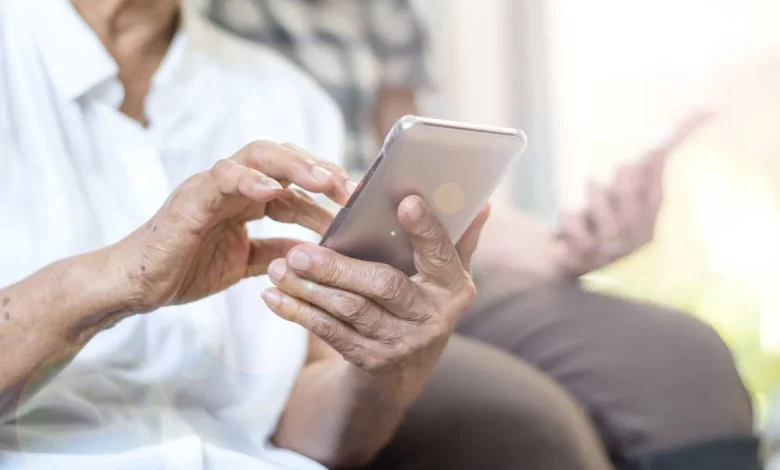
Switching from a button phone to a smartphone is often a real test for older people. Small text, tiny buttons and a sensitive touch screen can cause irritation and a fear of “pressing the wrong thing”. At the same time, modern smartphones have built-in accessibility features that can make them much easier for older people to use.
If the device is set up properly, it will be easier to see, hear and control. Different models — Apple iPhone, Google Pixel or Samsung Galaxy — have similar tools that are worth checking first.
On an Apple iPhone, basic changes are made in the “Settings” → “Display & Brightness” menu. There you can increase the text size, switch on bold text and use the Display Zoom feature to make icons and menus larger. In the “Accessibility” section you will find VoiceOver to read out what is on the screen, Zoom to enlarge small text or photos, and Voice Control for voice commands. It is also worth paying attention to Assistive Access — a simplified mode with large buttons and a minimum of apps, which can be locked with a passcode.
On Google Pixel smartphones, useful options are grouped in the “Settings” → “Display” → “Display size and text” menu. Here you can change the size of fonts, buttons and icons, as well as increase contrast. For those who find gestures difficult to get used to, you can bring back the classic three-button navigation with “Home”, “Back” and “Recents” buttons. In the “Accessibility” section there is TalkBack to read text aloud, Magnification to enlarge part of the screen, Live Caption for automatic subtitles, Sound Amplifier to boost sound and Voice Access for voice control.
Owners of Samsung Galaxy phones are advised to start by switching on Easy Mode. This is done via “Settings” → “Display”. The mode increases text and icon size, simplifies the home screen and adds a slight delay to reduce accidental taps. You can also adjust the font size, screen zoom and switch from gestures to buttons. In the accessibility settings there are options for increasing contrast, subtitles, connecting hearing aids and voice control.
Specialists also recommend tidying up the home screen: remove unnecessary apps and place the most important ones — phone, messages, camera, messenger — on the first page. It is worth choosing simple wallpaper without fine details, increasing the ringtone and notification volume, adding “favourite” contacts for quick dialling and extending the screen timeout.
Experts emphasise that the aim is not to learn every feature of the smartphone, but to master the basics: answering a call, sending an SMS or taking a photo. If you give an older person enough time to practise and set the device up to suit their needs, a smartphone can become a convenient and useful everyday tool.